
Is your blog installed in a subdirectory (http://yourdomain.com/blog)? As you’ve probably figured out by now, Google ranks these in their system much less frequently than a subdomain (http://blog.yourdomain.com). Not only that, but a subdomain makes for a much cleaner permalink structure. Changing your WordPress blog’s URL from a subdirectory to a subdomain is fairly simple with basic technical knowledge. A good idea is to enlist a WordPress expert — such as eDesign-Pro Company — to complete this task for you. However, if your budget doesn’t allow for expenditures, you can follow these steps to complete the modification on your own!
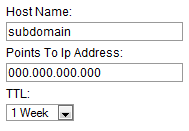
- Log into your domain management account, access your DNS settings, and an A Record to assign a new subdomain. Here, you’re creating a subdomain and telling it where to go (to your hosting account).
|
|
 |

- Log into your hosting management account and access your domain management dashboard.

- Add your new subdomain to the appropriate domain in your hosting account. This allows the host to map it to the correct directory where its files are located (your WordPress installation). Basically, when the subdomain is accessed in a browser, the domain sends the information over to the hosting account (because you told it to do that when you provided the server’s IP address). Once the subdomain gets to the server, you have tell your hosting account what to do with that subdomain. (ie: Where are the files the subdomain is looking for?) That’s what you’re doing here… You’re telling the server that when someone accesses the subdomain, they should be pulling up the files that are in the subdirectory your existing WordPress installation is housed in.
STEP 1:

STEP 2:

- TEST YOUR SETUP! Visit the URL of your subdomain (http://subdomain.yourdomain.com). If your blog comes up, everything has been configured correctly. If not, retrace your steps to find the error and correct it before continuing.
- Inform your WordPress installation that its URL has changed. Log into your WordPress installation as you normally would and under Settings, click on General then modify the URLs. BE CAREFUL! If you enter the wrong URL, you will have no other choice but to have someone fix it who knows what they are doing. It’s fixable, but if you need this tutorial in order to move your blog, chances are you won’t be able to fix it on your own. (If that happens, contact us — we can help!)
- NOTE: Do not paste the “/” at the end of the URL. See below how the structure of the URL is set up.

Once you’ve entered the new URL into your WordPress installation, save the new settings. This will automatically log you out and bring you back to the Login screen. Your blog is now active on its new subdomain! Congratulations! :) There is a way to preserve your permalinks so that none of your search engine traffic pulls up 404 errors (none of your previous links are interpreted as broken links or missing pages). I will cover that in a separate tutorial within the next few days and come back to link it here, so be sure to check back!