Author: Kathleen Toler

  • WordPress Basics, Part 3: Publishing Articles & Adding Media

    WordPress Basics, Part 3: Publishing Articles & Adding Media

    PLEASE NOTE: The current version of WordPress is 3.0.1. As newer versions are released, certain information provided here may possibly become outdated or irrelevant.

    Previously, I covered the differences between WordPress-hosted and self-hosted WordPress platforms as well as some tips on learning your way around the WordPress dashboard. The plan for this WordPress Basics series is to help new WordPress users become familiar with the functionality of the platform while preparing themselves to have a more comfortable and limit-free blogging experience. None of the theme-specific functions will be covered here since each theme is unique in its method of operation.

    Now that you know your way around the backend of a WordPress installation, let’s move into publishing content on your live blog site.

    (more…)

  • WordPress: Blogger Importer 403 Auth Error — THE FIX!!

    WordPress: Blogger Importer 403 Auth Error — THE FIX!!

    UPDATE: The Blogger import plug-in has been updated since this article was written. You may download and run the tool successfully on the WordPress platform.

    For those of you who read my workaround post regarding this issue, there is now an actual fix so that you can use the Blogger Importer without retrieving a 403 authorization error. A few simple tweaks in the plugin coding will have you on your way in no time!

    1. Find the blogger-importer.php file which should be located in /wp-content/plugins/blogger-importer.
    2. Locate line 99 which reads:
    3. $token = preg_replace( ‘/[^-_0-9a-zA-Z]/’, ”, $_GET[‘token’] );

    4. Change it to:
    5. $token = preg_replace( ‘/[^%-_0-9a-zA-Z]/’, ”, $_GET[‘token’] );

    6. Find line 108 which reads:
    7. preg_match( ‘/token=([-_0-9a-z]+)/i’, $response, $matches );

    8. Change it to:
    9. preg_match( ‘/token=([%-_0-9a-z]+)/i’, $response, $matches );

    That’s it. Run the Blogger importer like you normally would and VOILA — 403 auth error problem solved!

  • HOW TO: Change a WordPress Blog URL from a Subdirectory to a Subdomain

    HOW TO: Change a WordPress Blog URL from a Subdirectory to a Subdomain

    Is your blog installed in a subdirectory (http://yourdomain.com/blog)? As you’ve probably figured out by now, Google ranks these in their system much less frequently than a subdomain (http://blog.yourdomain.com). Not only that, but a subdomain makes for a much cleaner permalink structure. Changing your WordPress blog’s URL from a subdirectory to a subdomain is fairly simple with basic technical knowledge. A good idea is to enlist a WordPress expert — such as eDesign-Pro Company — to complete this task for you. However, if your budget doesn’t allow for expenditures, you can follow these steps to complete the modification on your own!

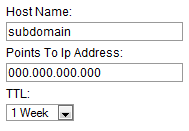
    • Log into your domain management account, access your DNS settings, and an A Record to assign a new subdomain. Here, you’re creating a subdomain and telling it where to go (to your hosting account).


    The “Host Name” is the subdomain
    (http://SUBDOMAIN.domain.com).
    Point the subdomain to the
    IP address of your hosting server,
    found in your hosting dashboard.

    • Log into your hosting management account and access your domain management dashboard.

    • Add your new subdomain to the appropriate domain in your hosting account. This allows the host to map it to the correct directory where its files are located (your WordPress installation). Basically, when the subdomain is accessed in a browser, the domain sends the information over to the hosting account (because you told it to do that when you provided the server’s IP address). Once the subdomain gets to the server, you have tell your hosting account what to do with that subdomain. (ie: Where are the files the subdomain is looking for?) That’s what you’re doing here… You’re telling the server that when someone accesses the subdomain, they should be pulling up the files that are in the subdirectory your existing WordPress installation is housed in.

    STEP 1:

    STEP 2:

    • TEST YOUR SETUP! Visit the URL of your subdomain (http://subdomain.yourdomain.com). If your blog comes up, everything has been configured correctly. If not, retrace your steps to find the error and correct it before continuing.
    • Inform your WordPress installation that its URL has changed. Log into your WordPress installation as you normally would and under Settings, click on General then modify the URLs. BE CAREFUL! If you enter the wrong URL, you will have no other choice but to have someone fix it who knows what they are doing. It’s fixable, but if you need this tutorial in order to move your blog, chances are you won’t be able to fix it on your own. (If that happens, contact us — we can help!)
      • NOTE: Do not paste the “/” at the end of the URL. See below how the structure of the URL is set up.

    Once you’ve entered the new URL into your WordPress installation, save the new settings. This will automatically log you out and bring you back to the Login screen. Your blog is now active on its new subdomain! Congratulations! :) There is a way to preserve your permalinks so that none of your search engine traffic pulls up 404 errors (none of your previous links are interpreted as broken links or missing pages). I will cover that in a separate tutorial within the next few days and come back to link it here, so be sure to check back!

  • WordPress Designers: Blogger Import Auth (403) Errors — Solution!

    WordPress Designers: Blogger Import Auth (403) Errors — Solution!

    SINCE THIS WAS POSTED, A FIX HAS BEEN FOUND. SEE MY NEW ARTICLE: WordPress: Blogger Importer 403 Auth Error — THE FIX!! If you are less technical, you may want to continue reading this article to process the workaround instead.

    You have two options if you’ve gotten the 403 authorization error while attempting to import a Blogger blog into a self-hosted WordPress installation:

    1. Use Blogger’s export feature to save an XML backup file of the blog. THE ONLY WAY this will do you any good is if the XML backup is 1MB in size or less because any file larger than this will not be accepted by the converter powered by Google Apps (http://blogger2wordpress.appspot.com/)… otherwise, you must have knowledge of the structure of XML code to be able to modify it so that the markups match up when you import it into WordPress. Once you convert it to WXF format, you can import it using the WordPress import tool in your dashboard rather than using the Blogger import tool (which is essentially busted right now). I have yet to have a client whose backup was under 1MB in size so hopefully you’ll get lucky. TO MY KNOWLEDGE, this method won’t import images, but you can likely use the Blogger Image Import plugin to accomplish this on your own.
    2. Since WordPress.com has resolved this issue on their installations, simply create a WordPress.com account and use it to import the Blogger blog as you usually would do using the Blogger import tool. Once you’ve done that, export the blog to obtain a WXR file and import that file into the self-hosted installation using the WordPress import tool. If it is a large file, you may notice that you have posts and comments missing. Here’s the trick: when the import seems to be finished (the status bar says “DONE”) there should be a link to your blog’s main URL at the bottom of the imported content (each line has a number and title, etc.) with anchor text that says HAVE FUN! If you don’t see that, it’s not done. Simply keep hitting refresh until you see that. Voila. Done. Using this method of getting the data from Blogger to your installation of WordPress is going to pose a few issues of its own, but they’re mild for the most part and easy to work around to achieve the same result as the Blogger import would have.

    If you have specific issues once you’ve done this, feel free to submit a question using my contact form.

    Good luck working around the 403 authorization error while processing your Blogger to WordPress transfer!

  • All Dog Boots: Blog Design

    All Dog Boots: Blog Design

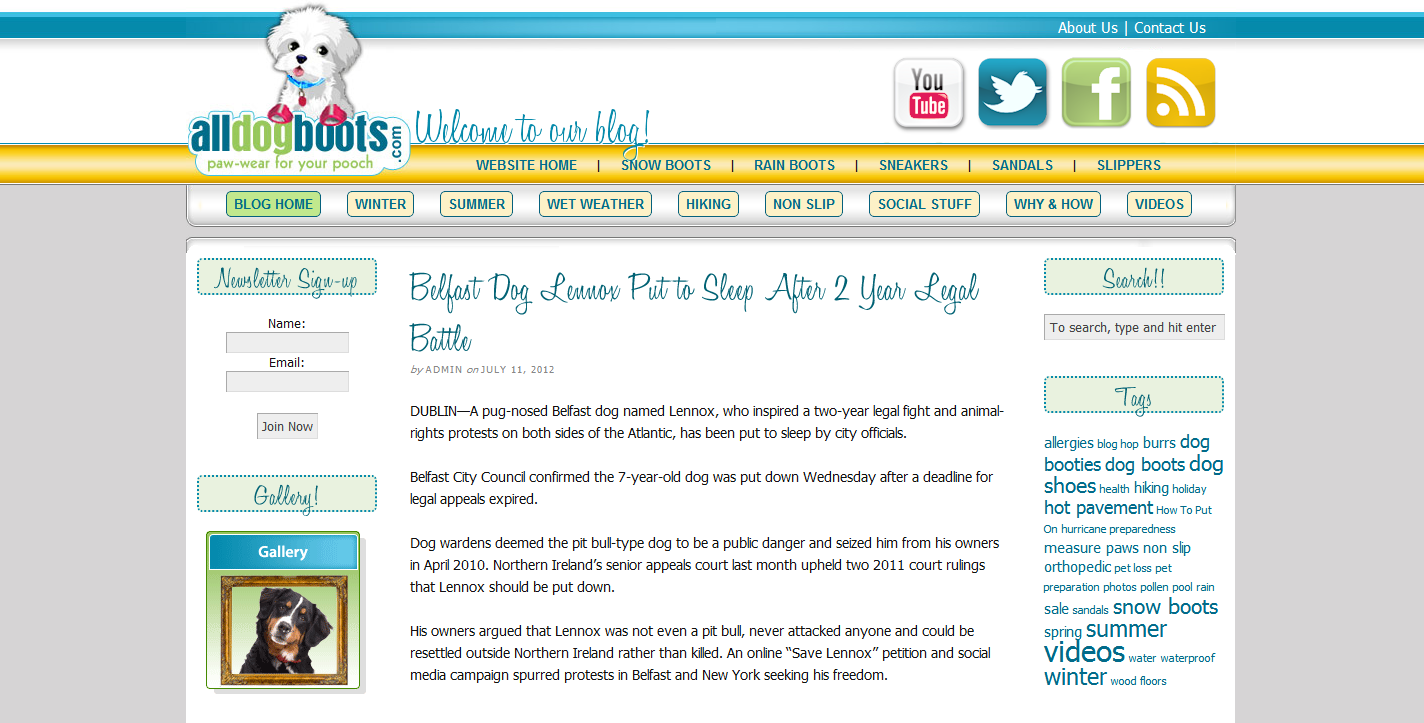
    Karen came to me in search of a blog design that would mirror her existing website. She wanted it to have its own appeal, but to integrate flawlessly into the scheme she already had in place. I chose to customize the Thesis theme for her blog, giving particular detail to the header portion in order to give it the same feel as her website while minimizing the attention drawn to the body so that the content itself would be the focal point.