Author: Kathleen Toler

  • Android 4.0: Ice Cream Sandwich Update

    Android 4.0: Ice Cream Sandwich Update

    T-Mobile finally rolled out the 4.0 update for the Android-powered HTC Sensation 4G. I installed the new OS last night and am impressed thus far with the improvements to the user interface. The movements are more fluid and there are more open/close animations than before. The appearance of buttons, icons, and text (typeface/fonts) have all been modified. The layout of things like the menus, phone keypad, contacts and the like haven’t been changed all that much but they’ve been touched up to be more aesthetically pleasing.

    The interface as a whole has a darker color scheme which makes it look much sharper and gives a quality professional feel to the device. Everything about the new look and feel is extremely refined and intuitive. The notifications pull-down from the system bar provides more information about each notification whether it be email, Facebook activity, or text messages. Your recently used apps are still scrollable from left to right at the top and the quick settings tab is still at the bottom right. The quick settings tab has changed from simple check boxes to a slideable on/off switch which is more visually appealing.

    While previous versions allowed plain manilla-looking folders on the home screens without any indication of what was inside (with exception to the folder name itself), 4.0 provides a glimpse into what the folders contain by having a grid of icons reflecting the first four applications you’ll find there and the functionality of drag and drop into one another to create a folder is very similar to what you find in the Apple lineup (iPad, iPhone, iPod). As always, the home screens are multimedia-rich and allow you to perform various tasks without launching a full application — Android 4.0 plays into that utilization even more by affording you more options directly from your widget areas.

    Possibly my personal favorite addition to the features in this version is the face recognition option for the lock screen. The front-facing camera will scan your face and allow you to unlock the phone simply by looking at it. Not much good if you’re an identical twin, but luckily I’m safe :) In the event that you’re in poor lighting or it is unable to positively match your face with the scan it has stored, it will default to your secondary unlock choice which is either a drawn pattern or a numerical code which is not limited to four digits.

    I use Google Apps for the majority of my domains so all of my email is contained in the Gmail app. It now allows me to swipe my finger left or right across the screen to move to previous and next messages, respectively. I can now also choose to compose a new message, search, manage or view labels, and refresh my email without having to click the menu softkey as those items are all in a menu along the bottom of the screen. When viewing an individual message, I can archive or delete it, assign or disassociate labels, or mark it unread also from that same menu spot.

    The popup dialog boxes are redesigned to be more sleek in appearance. The whole interface has improved drastically in that respect. I have also noticed a drastic change for the better in the accuracy of typed keys and suggested words when using Swype. The pop up menus are more slender and take up significantly less screen space, which was never an issue for me to begin with but I must admit I prefer the smaller size which results in much higher visibility of the menu content and less scrolling up and down.

    From enhanced email features to resizable home screen widgets, Android 4.0 is definitely a worthy upgrade. You can view a full list of new and redesigned elements as well as details about each, including new accessibility options for visually impaired users, by visiting Android.com!

  • HOW TO: Paginate Post Content in WordPress

    Have you ever written an article that was entirely too long for one page? Here’s a quick way to break that post up into multiple pages for faster page loading, more page views in your statistics resulting in higher CPM and more ad impressions (your visitors will typically get a new ad displayed with each page load), and a better experience for your readers.

    Type your article like you normally would, all at once. When you’re finished, figure out where the breaking point (or points) should be and insert the following in HTML view:

    <!--nextpage-->

    Publish your article. You should see links to each of the pages of the article. You can manipulate the way they are displayed by modifying code in your single.php and style.css files.

    In single.php, you should see a line of code that reads something like this:

    <?php wp_link_pages(array('before' => '<p><strong>'.__('Pages','').':</strong> ', 'after' => '</p>', 'next_or_number' => 'next')); ?>

    To stylize this section, change the <p> that follows the ‘before’ tag to <div id="postpagination"> and change the </p> that follows the ‘after’ tag with </div>. This will tell your file where to pull the styling from in your css file.

    NOTE: If you would rather have the page numbers, you can change ‘next‘ (in red text) to ‘number‘ in the last part of the code. If you would like to change the text before the page links, replace Pages (in red text) with your own phrase.

    In style.css, add:

    #postpagination { font-family: Arial; font-size: 12pt; color: #000000; border: 1px #464646 solid; text-align: center; }

    You can play around with the styling until you get the pagination appearance the way you want it. That’s it! Click here to see an example of the result with one page break.

  • Using Android Safety Tools to Monitor Children’s Activity

    Using Android Safety Tools to Monitor Children’s Activity

    If you’ve ever worked with us before, you know that eDesign-Pro is a mom-owned sole proprietorship and I have five children, none of which have even made it to their teen years as of yet! Our 10 son and 11 year old daughter both have Android-powered mobile phones,  so certain apps are used a bit differently in our family. Here are some great ideas for Android apps that help you monitor your children’s activity, safeguard them from inappropriate web content, and locate them in an emergency (or recover their lost phone) using the GPS.

    • The Android Market online: To my knowledge there isn’t any way to restrict what your children have access to in the market (aside from utilizing a service that your carrier may provide, such as T-Mobile‘s “Web Guard”) but going to this website and logging in with my child’s credentials allows me to see the apps they have downloaded and which ones are currently installed so that I’m able to determine if any of them are not appropriate and should be removed. It’s a much quicker and easier way to get all the information I need on every app they are utilizing and is accessible even when they aren’t home. The only downside is that there is currently no way to remove the app without using the device itself. This is strictly a monitoring tool.
    • SMS Backup +: This app allows you to connect your text messages and call logs to your Gmail or Google Apps account and sync them with your email.
      • FOR YOU PERSONALLY: When you switch phones, you can easily restore your call log and text messages into your new phone so that you don’t lose any of that data. Also, when you forget that you left your phone in the other room and you’re working (or playing) on the computer, you’ll notice those missed calls or texts in your email so that not too much time passes before you know to respond.
      • FOR YOU, AS A PARENT: If you have children that you want to monitor, you can have this app work in the background on the phone without notifications to sync these items to your email (it doesn’t use the account programmed into the phone – it uses the account you set up in the app) so that you will receive all their activity within 1 minute. Know who your kids are talking to and what the conversation is. I realize some parents consider this an invasion of privacy; I call it making sure I know what my kids are up to. TomAYto, tomAHto.
    • Lookout Mobile Security: It’s anti-virus software. For your phone. :) Need I say more? Being highly recommended by CNET and with over 10 million downloads, this is definitely a must-have. There is a free version and a paid version. After the trial month, you can either continue the upgrade by purchasing ($2.99 per month or $29.99 per year) or be reverted to the free version. The upgrade allows you to remotely lock and wipe your phone if it’s lost or stolen as well as backup your photos and restore them to a new device. Click the link to view a full listing of free and premium features. This keeps their phones safe when they are clicking around without knowing what they’re downloading… and restores their memories if they drop their phone out of their pocket after they’ve just taken irreplaceable photos :)
    • Where’s My Droid: When paired with the SMS GPS Enabler, this is a powerful tool if your phone is ever lost or stolen. You can use the SMS GPS Enabler to enable GPS using text message commands if it isn’t already activated to help you locate your phone using Where’s My Droid. Both are free apps, but Where’s My Droid does offer premium services like remotely wiping the SD card and phone data as well as activating the app from a landline telephone.
    • Life 360: Stay connected with every Android-using member of your family with maps, check-ins, and even a panic button which notifies everyone of your whereabouts and that you are in need of assistance. There is even an optional sex offender map which allows you to see who is in your area and keep track of threats. The feature can be disabled if you don’t want your children viewing the information. Click the link to view a full feature list and compare the free and premium versions.

    What Android applications have you found useful in safeguarding your family?

  • Erin C Lane: ECLCommunications.com {Professional Website}

    Erin C Lane: ECLCommunications.com {Professional Website}

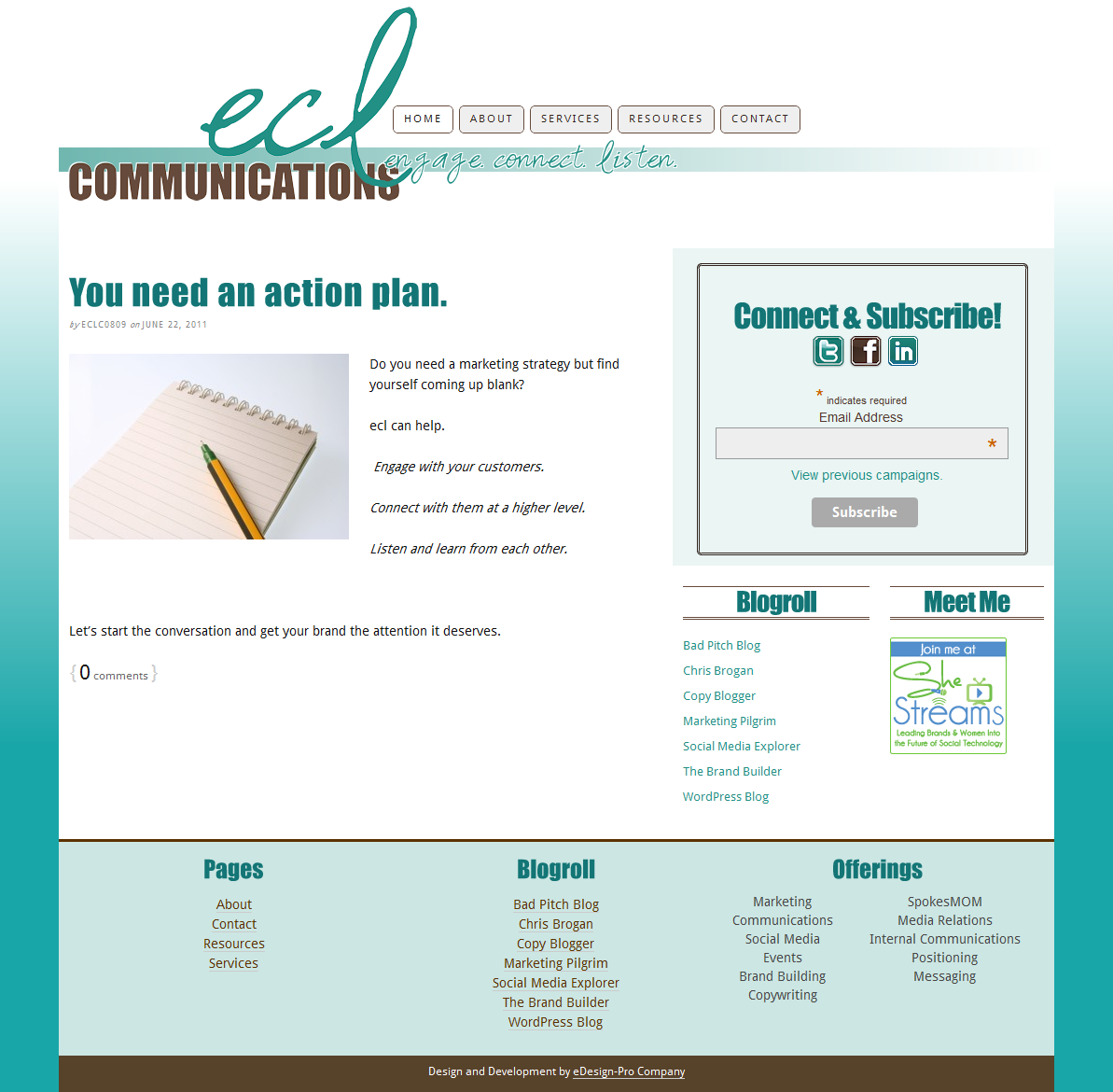
    Erin recently started an official business for the consulting services she has been providing to her clients. It was my pleasure to take her vision and turn it into a beautiful web presence for her company, ECL Communications. She already had a nice logo, simple yet pleasing to the eye so we took the existing typography and color scheme to build the site around that central presence. This is the end result:

  • HOW TO: Add Your Twitter Handle to “ShareThis” Plugin Tweets

    HOW TO: Add Your Twitter Handle to “ShareThis” Plugin Tweets

    ShareThis is a great sharing plugin built for WordPress that allows visitors to share your content through their own social media network with only a couple of easy clicks. The only complaints I’ve gotten from clients who use the plugin are:

    1. The buttons are aligned to the left rather than being centered on the line they occupy
    2. When their visitors share a post via Twitter, it doesn’t mention (@) their Twitter ID
    Fixing these two quirks are pretty simple. If you don’t care about centering them, just skip to the second part and change the code in the ShareThis plugin settings screen.

    Centering the Boxes

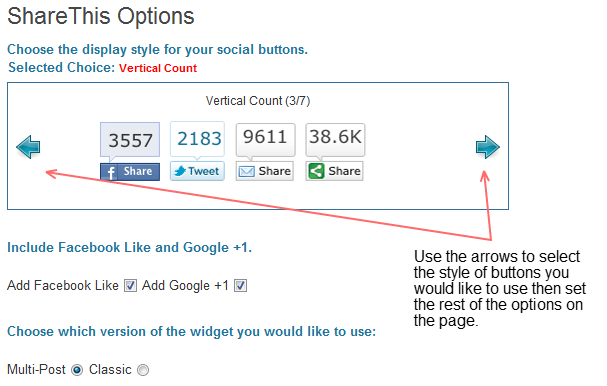
    Rather than trying to modify the plugin code, you simply set your options and extract the code generated by the plugin to display the boxes. (Click on an image below to expand it to full size)

    After following the instructions in the graphic illustrations above, open your theme’s editor (in the WordPress dashboard, go to Appearance –> Editor) then click on Single Post // single.php in the file list in the right side of the page. Find the tag and execute the following either above or below it depending on whether you want the buttons to be displayed above or below your content.

    Paste the ShareThis code you copied from the plugin’s settings screen. Add <div style="text-align: center;"> to the beginning and add </div> to the end of it.

    Adding {@username} to Twitter Shares

    Find the following section in the ShareThis code:

    <span class='st_twitter_vcount' st_title='<?php the_title(); ?>' st_url='<?php the_permalink(); ?>' displayText='share'></span>

    … replace that section with this and be sure to replace YOURusernameHERE with your Twitter ID:

    <span class='st_twitter_vcount' st_title='<?php the_title(); ?> {via @YOURusernameHERE}' st_url='<?php the_permalink(); ?>' displayText='share'></span>

    That’s it. You’ve got centered boxes and your visitors’ tweets sharing your content will mention you, or your brand’s, Twitter name. If you have any questions or complications, leave me a comment below!

    Bonus: Add a share-to-Twitter link anywhere!

    Add the following code to any of your theme files:

    Using a text link:

    <a href="http://twitter.com/home?status=Currently reading @YOURusernameHERE: <?php the_title(); ?> – <?php the_permalink(); ?>" title="Twitter">Share via Twitter!</a>

    Using an image link:

    <a href="http://twitter.com/home?status=Currently reading @YOURusernameHERE: <?php the_title(); ?> – <?php the_permalink(); ?>" title="Twitter"><img src="IMAGE SOURCE URL HERE"></a>